 Bellnote
Your family's week, on the kitchen wall.
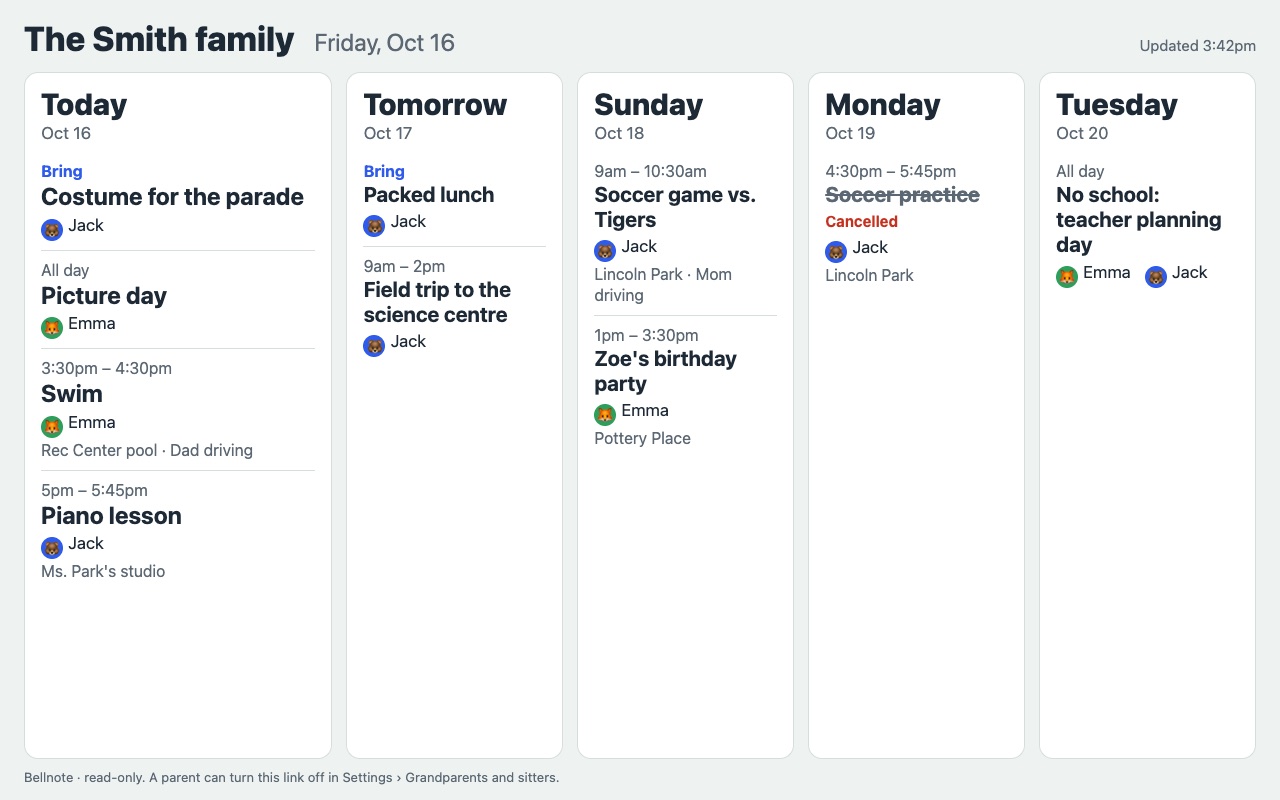
Turn a photo frame, an old tablet or any screen with a browser into the family's board. Bellnote fills it with the next few days in large type: where each kid needs to be and when, what to bring, and who's driving. It comes straight from the school emails and team messages Bellnote already reads for you, and keeps itself up to date.
Set up a screen
Any screen that can open a web page works: a photo frame running a kiosk app, an old tablet on the fridge, a smart display or a TV browser. It's laid out for a landscape screen like a 10-inch frame (1280 × 800), and stacks the days on anything narrow.
Make a link for the screen
In the Bellnote app, open Settings, then Screens at home. Name it after the screen, like Kitchen frame, and pick Next 3 days or Next 5 days. Then select Get a link for this screen.
Send the link to yourself, by email or in a note to your computer. It's shown only once. Make one link for each screen, so you can turn one off on its own.
Settings · Screens at home
Open it on the screen
Open the link in the screen's browser and make it the start page, or set it as the page your kiosk app shows. On a tablet, a kiosk or "fullscreen browser" app keeps it on screen and starts it after a restart.
The screen shows today and up to four more days. It reloads every 5 minutes, moves on to the next day after midnight, and turns dark from 9 PM to 6 AM in your family's time zone, so a kitchen screen isn't a lamp at night.
Using the photo-frame-dashboard kiosk?
If your frame already runs the kiosk app from Wes Bos's open-source photo-frame-dashboard project, save your Bellnote link as its page from your computer, with the frame connected over ADB:
adb shell am start -n com.wesbos.homehq/.MainActivity \
  --es url 'https://api.bellnote.app/c/…'
Or run that project's scripts/set-kiosk-url.sh with the link. The kiosk opens it after every restart and retries on its own while the Wi-Fi comes up.
Good to know: Bellnote's screen view is built for the old Android web view many frames have (Chrome 106): no scripts, nothing loaded from other sites, and colours and layout it supports. We don't help with unlocking or rooting frames; follow that project's own guides and safety rules.
Frames and displays with their own calendar
Many family calendar displays and photo frames show a calendar from a link, often called an iCal, ICS or webcal link, or from a Google calendar. Bellnote has one for your family.
Add the calendar link
In the app, open Settings, then Calendar, and copy the calendar link. Add it in the display's calendar settings wherever it asks for a calendar link or URL.
Or go through Google
If the display syncs with Google Calendar, add the link to Google Calendar on the web under Other calendars, From URL. It then shows up everywhere that calendar does.
It carries the whole calendar
Unlike the screen view, the calendar link includes due dates and payments too. How often the display checks it is up to the display; some take a few hours.
Building your own dashboard?
If you've made your own family dashboard, with a weather panel, chores, photos or home controls, Bellnote can be its school and activities part.
Link to the screen view
Add a button or tab to your dashboard that opens the screen link full screen. It reloads on its own and needs no code from you. For safety, Bellnote's pages can't be shown inside a frame on another site.
Read the calendar feed
The calendar link is a standard iCalendar feed (RFC 5545) with stable event IDs, so changes replace events instead of duplicating them. Titles start with the kid's name, like Emma: Swim. Fetch it from your server or worker: browsers can't read it directly from another site.
Keep the link out of your code
Anyone with the link can see what it shows. Put it in your dashboard's settings or an environment variable, never in a public repository. If it leaks, turn it off in the app (or replace the calendar link) and make a new one.
What the screen shows, and doesn't
A screen in the kitchen is seen by everyone who comes in, so it shows what you'd tell a sitter, and nothing more.
Plans only
Where each kid needs to be and when, what to bring, and who's driving. Never messages, notes, payments or homework, and nothing still waiting for you to check.
Off from your phone
See when each screen last loaded its page, and turn its link off in Settings, Screens at home. Within 5 minutes the screen stops showing your plans.
Nothing on the screen
No account, password or app on the screen, and nothing it can change. The page has no scripts, loads nothing from other sites, and is never cached or indexed by search engines.
photo-frame-dashboard is an independent open-source project by Wes Bos. Bellnote isn't affiliated with it; we made sure Bellnote works well on the frames it sets up. Many low-cost frames run old Android versions without security updates, which is one more reason the screen view shows only plans.